Encoders and fallback
Use Larix or Moblin, tune SRT latency, and switch to Fallback when a feed drops.
The fastest path for most streamers is the phone or browser app — see Get started. This page covers third-party encoders, the dashboard latency probe, and, if you use OBS, Advanced Scene Switcher macros that keep the show on a fallback scene while a remote feed reconnects.
Third-party encoders
If you publish with Larix, Moblin, or another SRT/RTMP encoder instead of the VISP app:
- Sign in to the portal with Twitch, Kick, or Google.
- Open the Devices tab, enter a Device name under Video sources, and choose Add device.
- Choose Copy next to Add this to video source and paste the URL into the sending encoder.
- Optional: to use RTMP instead of the default SRT URL, turn on Show RTMP and SRTLA fallback URLs on the same tab.
Each device has an independent publish credential, so rotating or revoking one does not interrupt the others. OBS read credentials are managed separately.
Use SRT by default and RTMP only when the network blocks UDP. Configure H.264 video, AAC audio, constant bitrate, and a two-second keyframe interval. Enable adaptive bitrate in Larix on cellular connections.
Only one publisher can own a path. The first device remains connected; a second device cannot pre-connect for a seamless handoff.
Bond two connections with SRTLA
Every relay accepts SRTLA on UDP 5000, so a BELABOX box, Moblin, or any other SRTLA sender can spread one stream across Wi-Fi and mobile data at once. Unlike sending the same feed twice, SRTLA sends each packet once and moves traffic to whichever link is coping best, so two connections give you more headroom rather than a doubled data bill.
On the Devices tab, turn on Show RTMP and SRTLA fallback URLs, open your device, and choose Bonding two connections with BELABOX or Moblin? Show the SRTLA URL. The link carries the same credentials as the SRT one — only the scheme and port differ:
srtla://relay.example.com:5000?streamid=publish:SLUG:HANDLE:SECRET&pkt_size=1316In Moblin, paste it as the stream URL and enable the connections you want under Settings → Streams → your stream → SRT(LA). On BELABOX, set the receiver server to your relay host and the port to 5000, and keep the same stream ID.
Set the SRT latency as if the weakest link were carrying the stream alone — the cellular row of the table below. If UDP 5000 is blocked on the network you are on, the plain SRT URL on 8890 still works, without bonding.
Tune SRT latency
Open the dashboard Advanced tab and choose Measure relay RTT on the same network the encoder will use. It times seven sequential requests to the relay and uses the median RTT. Select the real Network profile and keep the rounded recommendation:
| Profile | Multiplier | Minimum |
|---|---|---|
| Wired | 3× RTT | 120 ms |
| Wi-Fi | 4× RTT | 300 ms |
| Cellular | 6× RTT | 600 ms |
Cellular jitter is bursty; do not tune below the recommendation.
OBS scene collection (optional)
Only needed if OBS reads your feed. On the dashboard Destinations tab
(named OBS in OBS mode), open OBS read credentials, choose Reveal read
URLs (or Generate OBS credentials the first time), then Download OBS
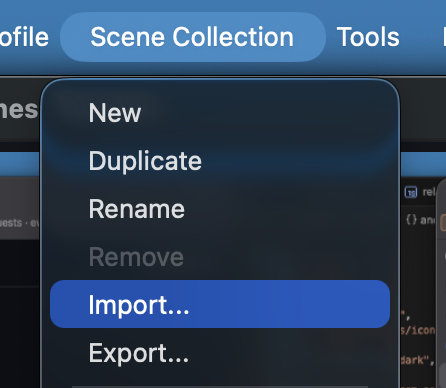
collection. In OBS, choose Scene Collection →
Import and select the downloaded JSON. It
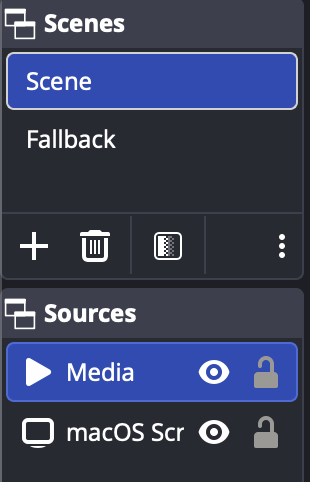
contains a fallback scene and one Media Source scene per active relay path. The
sources use ffmpeg_source, MPEG-TS, low buffering, and automatic reconnects.
After creating a device, open OBS read credentials again, choose Reveal read URLs, and either copy the new path's OBS URL or download a fresh scene collection. You do not need to rotate the read credential. Rotate read invalidates every existing OBS Media Source, so use it only when you intend to replace them.
Advanced Scene Switcher (optional)
This applies only when OBS is live to your platform. Create a Media condition for each generated Media Source. A Source condition checks scene visibility and can deadlock the switch; Media checks playback state.
For every macro:
- Enable both the condition and action toggles.
- Require Playing for 2 seconds before switching to the live scene.
- Require Stopped for 3 seconds before switching to Fallback.
The debounce prevents scene flapping while SRT reconnects.