OBS remote control
Connect OBS, manage publishing devices, add Media Sources, and enable remote control.
The VISP plugin for OBS Studio 31 connects your VISP account directly to OBS. It lists publishing devices, adds relay feeds to scenes, can configure this OBS installation as a publishing device, and lets the portal, Native app, or dedicated VISP OBS Remote app control the stream. OBS never opens an inbound port and no port forwarding is needed.
The plugin is optional: Direct streams to your platforms without OBS. Pairing is the optional OBS step of Get started. This page covers install details, security, and recovery.
Install
Download the package for your platform from the project's GitHub Release —
Windows, macOS (signed and notarized), and Ubuntu packages are attached, with a
SHA256SUMS.txt, to each stable release that changes the plugin. Use the newest
release that has them. On Windows, close OBS and run the windows-x64.exe
installer; it installs to C:\ProgramData\obs-studio\plugins\visp-obs and
offers to remove an older manual copy from the OBS program folder. On other
platforms, install it like any OBS plugin. Then restart OBS. The Windows
installer is not code-signed yet, so SmartScreen may warn; choose
More info → Run anyway. Building from source is only needed for development; see the
apps/obs-plugin README.
Pair
- In OBS, open Tools → VISP Remote Control.
- Click Sign in with browser.
- Sign in to VISP and approve the OBS code, then return to OBS.
The dialog lists every active publishing device. Add to scene creates or refreshes its Media Source in the selected scene. Use this OBS as an output creates a new VISP publishing device and, after confirmation, replaces the current OBS profile's stream destination with its SRT URL. Stop streaming before changing that destination.
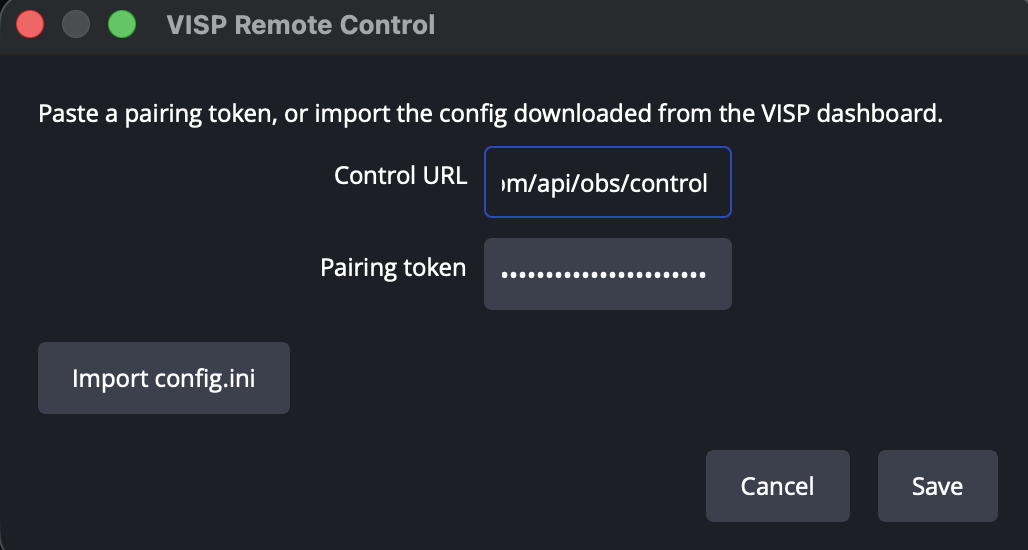
When your dashboard mode is OBS, the dashboard OBS tab shows Connected
within a few seconds, without restarting OBS. Manual pairing still works: on
that tab, open Plugin pairing and choose Generate pairing token or
Download plugin config. Paste the token under Advanced in the plugin
dialog, use Import config.ini, or place these values in config.ini while
OBS is closed:
[visp]
control_url=https://APP_DOMAIN/api/obs/control
token=the-token-shown-by-visp
Remote start/stop uses the active OBS profile. Configuring this OBS installation as a VISP publishing device replaces that profile's current service and key; VISP never receives the replaced provider key.
Back up and restore OBS (optional)
Back up to VISP in the plugin dialog uploads your scene collections, profile settings, and linked local media to VISP. Stream keys and VISP credentials are excluded. VISP keeps your 10 newest backups and deletes older ones automatically; deleting your VISP account deletes all of them.
Restore from VISP brings a backup back, on the same computer or a new one:
- Stop streaming, recording, the replay buffer, and the virtual camera.
- Select Restore from VISP and choose a backup from the list.
- The plugin downloads every file and checks its size and checksum before it changes anything in OBS.
- Each scene collection comes back as a new collection named
<name> (restored YYYY-MM-DD), and the profile as a new profile with the same suffix. Your existing scene collections and profiles are never overwritten. OBS switches to the restored profile and scene collection; if it cannot load the profile right away, restart OBS and pick it from the Profile menu. - Linked media is copied to the plugin's own folder
(
plugin_config/visp-obs/restored/<backup id>/mediain your OBS configuration folder), and the restored scenes point at those copies.
Because stream keys are never backed up, set your stream destination again in Settings → Stream (or use Use this OBS as an output) after restoring. If the backup was made on a different operating system, the plugin warns you first: scenes and media come back, but capture devices, fonts, and output paths may need to be set up again.
Security model
- Browser approval uses a short-lived device authorization. The temporary VISP session is revoked as soon as OBS exchanges it for a limited machine token.
- The machine token is random and 256-bit. VISP stores only its SHA-256 hash and compares in constant time.
- Rotating the token in the dashboard disconnects every previously paired OBS configuration immediately or on its next state write.
- Treat
config.inias a machine credential: anyone holding it can start and stop your stream. Rotate immediately if it is exposed. - Pairing and ticket acquisition use HTTPS; live state and commands use authenticated outbound WSS with normal TLS certificate verification through OBS's bundled Qt network stack.
- The token can list and create publishing devices and obtain read URLs, but it
cannot manage unrelated account or provider settings. Treat
config.iniand OBS scene collections as machine credentials.
How commands flow
The plugin requests a 30-second, one-use WebSocket ticket with its machine token and opens an outbound WSS connection. It reports streaming state, scenes, and the current scene immediately after relevant OBS changes and on five-second heartbeats. VISP pushes pending start, stop, or scene commands immediately and the plugin acknowledges them only after OBS reaches the requested state.
OBS Remote authenticates as the broadcaster's normal VISP account, obtains its own one-use ticket, and receives the same status updates over WSS. Commands stay authenticated tRPC mutations and PostgreSQL remains the recovery source if a socket disconnects.
Troubleshooting
- Never connects: verify
control_urlpoints at the public app origin, HTTPS ticket acquisition works, and the reverse proxy permits WSS upgrades under/api/obs/*. - Was connected, stopped after a rotation: expected — re-pair with the new token.
- Start does nothing in OBS: configure a streaming service and key in OBS first; the plugin does not supply them.